
Follow money still owed rather than treating an approved order or sent invoice as paid. Use balances and due dates together to prioritize collection.
Starting context
Before you start
- Current invoice/payment records in the intended Shopify store.
- Permission to handle buyer/business records; NetGuard Pro or Business for aging charts and trends.
Read the position
Dashboard totals are operational records, not an audited financial statement. Compare amounts in the same currency.
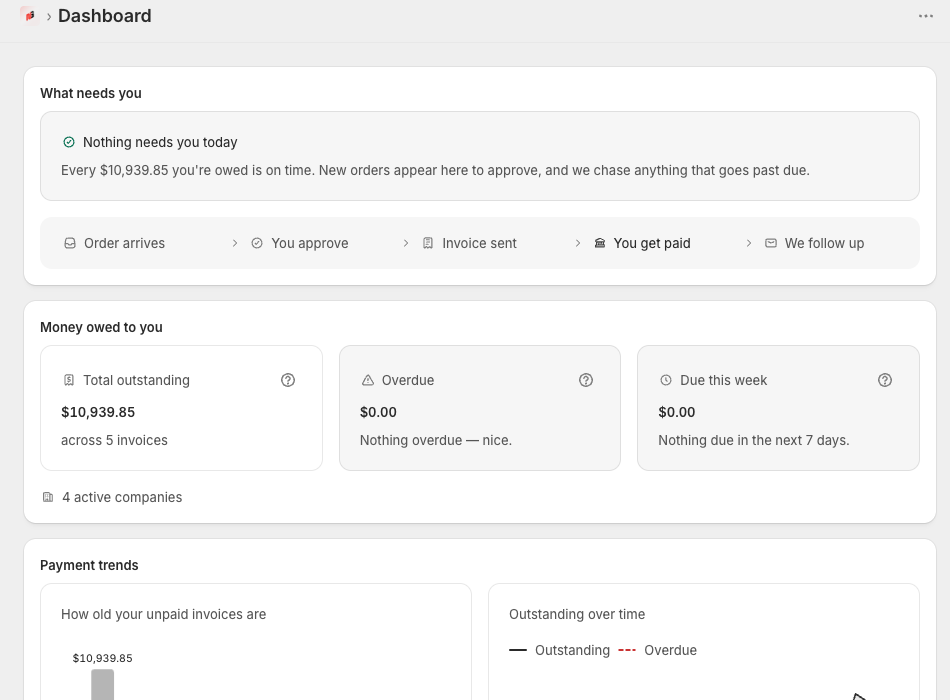
Open Dashboard and inspect outstanding and overdue amounts. Follow the appropriate invoice/company link to review the records behind the total.
Expected resultUnpaid exposure and overdue debt answer different questions. A paid chart lock is entitlement information, not an empty receivables ledger.
Open Invoices and use Search, Status, Company and Due date. Set Due from and Due to when examining a particular period.
Expected resultThe list narrows to that scope. The default unpaid view does not include every historical paid or cancelled record.
Open a row and compare its total, remaining balance, due date and payment history with verified bank/provider receipts.
Expected resultPartial, Paid, Refunded and Overdue remain distinguishable; balance tells you how much remains while due date tells you when.
Export and reconcile
CSV records may contain buyer/business details. Keep downloaded files in your controlled accounting workflow.
Set the intended filters and select Export CSV. Inspect invoice identifiers, currency, dates and export scope before accounting import.
Expected resultThe supported records download. An export error is not a valid empty ledger and must be resolved before import.
Compare a sample invoice to the Shopify order and payment history. Review company Owes you and Credit held separately.
Expected resultYou can distinguish a missing receipt from held account credit, an order/refund change or recently processed data.
Refresh after recent processing. If a discrepancy persists, send support exact amounts, record identifiers, time and a redacted comparison.
Expected resultSupport can investigate without a full customer export, credentials or unrelated personal information.
Check before retrying
If the result differs
- A paid invoice disappeared
- Clear the unpaid Status filter and check dates/company. A record outside your view has not necessarily been deleted.
- CSV and dashboard differ
- Compare filters, currency and date scope, then inspect the same invoice records. Aging is different from total outstanding.
- A chart is locked
- Check NetGuard entitlement in Settings → Billing and distinguish an upgrade prompt from a data-load error.
Contact NetGuard support with the store domain, record identifier and the result you expected. Redact unrelated personal information.