
Use Companies to make a credit decision for one business. Limits, money owed and credit held are separate figures; branch slices never create extra company credit.
Starting context
Before you start
- An imported B2B company and its active locations.
- Your credit policy and store currency; worked examples use fictional amounts in one currency.
Find the company and set its limit
Active status does not by itself mean a branch has native Shopify terms.
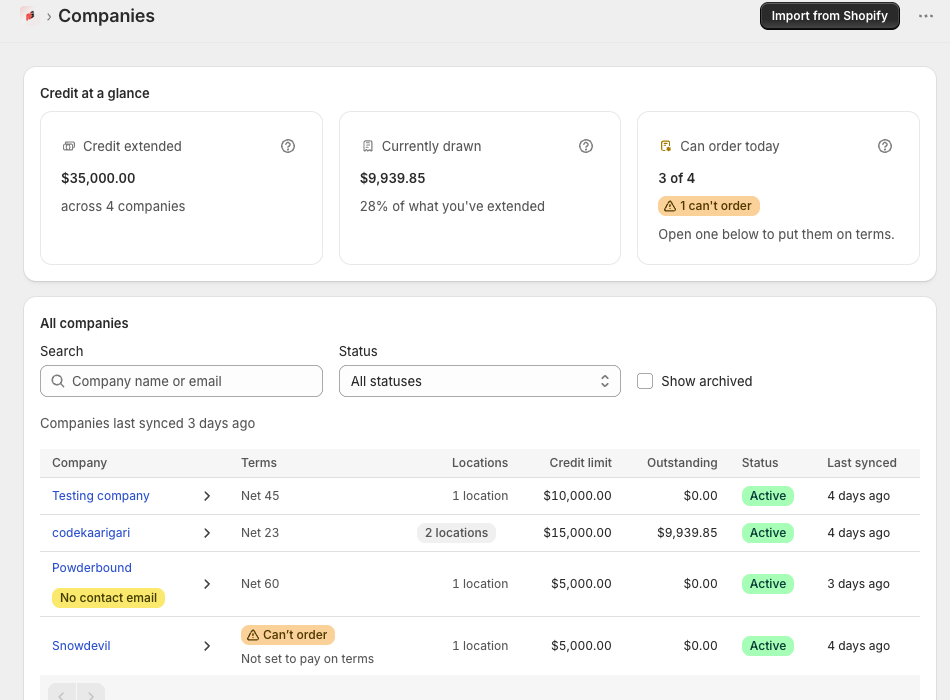
Open Companies. Use Import from Shopify to bring in existing companies, then Search or Status to locate the business.
Expected resultIts row shows terms, locations, credit limit, outstanding amount and status. Review import errors and plan-cap warnings.
Open the company and read Owes you, Credit held and Available to order before using the credit-limit change control.
Expected resultYou can distinguish debt from account credit. Available credit can be negative; an exceeded limit is not hidden.
Enter the intended company limit and choose Save credit limit. Review any warning when lowering it below current exposure.
Expected resultThe company uses its saved override. Resetting it restores the shop default, so later default changes can affect this company.
Divide credit between branches
One branch has nothing to split. With multiple active branches, reserved slices leave a shared pot for unallocated branches.
In Branches, open the credit split control and enter a slice for each branch that needs a reserved allocation.
Expected resultGiven to branches and Left over show the split. Total reserved slices must fit within the effective company limit.
Review the unallocated branches and save the split. Compare each branch’s debt to its slice before accepting another order.
Expected resultUnallocated branches share the leftover pot; reserved branches remain bounded by their slice and company-wide headroom.
Review terms and pause ordering
Terms resolve from location override, company override, then shop default. Company credit and approval settings resolve from company override or shop default.
Review Payment terms. If the company cannot order on invoice yet, use the displayed Shopify terms action and read its confirmation.
Expected resultNative Shopify terms agree with the intended policy for that location; existing invoices are not silently rewritten.
Open Pause or stop ordering, choose the intended hold or suspension, and read its confirmation before applying. Test with the validation rule enabled.
Expected resultNew credit ordering is restricted by status and configured checks. Existing invoices and payment obligations remain.
Keep in mind. NetGuard applies your credit decision; it does not assess creditworthiness. A held/suspended company cannot initiate portal payment checkout, but you can still record money already received manually.
Check before retrying
If the result differs
- The shop default did not change this company
- Check explicit company/location overrides and the displayed source before resetting a value.
- A branch is blocked despite company headroom
- Check its slice, debt, shared pool, native terms, status and the enabled checkout checks.
- A Shopify change is missing
- Check sync/refresh state and retry after processing. Give support the affected company/location identifiers if it persists.
Contact NetGuard support with the store domain, record identifier and the result you expected. Redact unrelated personal information.